Build the look once.
Control every video.
Explore the real menus, controls and output options. Each screen links to its own written guide.
Start the batch with the right files.
Add individual videos or choose a full folder. Forge places them in one project, shows what was found and lets you connect the media each video needs before editing starts.
- Add one file or a complete working folder
- Search and assign the correct media
- Read each item’s title, length, tags and state
- Fix missing media before it becomes an export problem
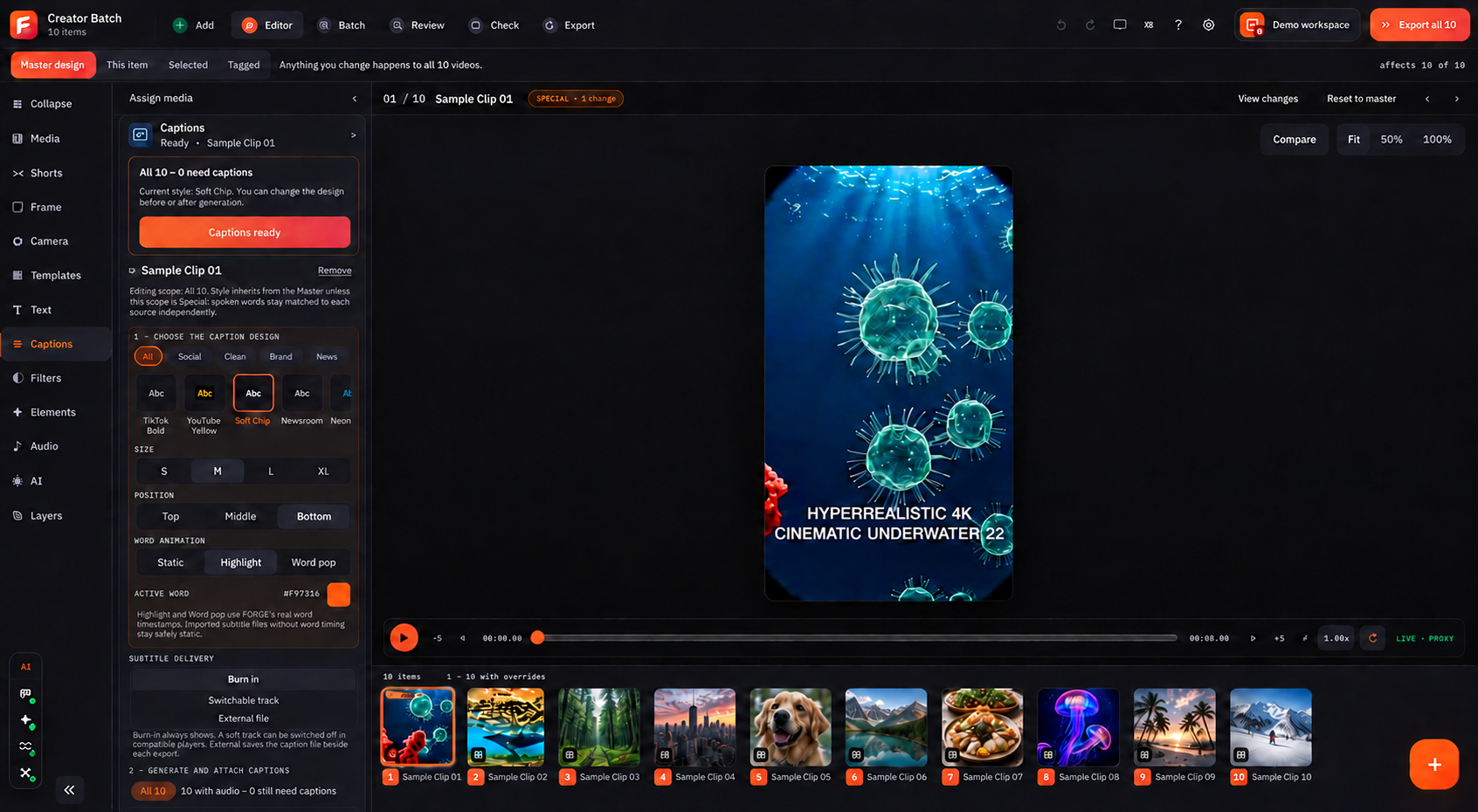
Edit one video or change them all.
First choose what should change. Master design applies the edit to every video. This item changes only the open video. Selected and Tagged change only the group you choose.
- See 10 videos together in the bottom item rail
- Media, Shorts, Frame, Camera, Templates and Text
- Captions, Filters, Elements, Audio, AI and Layers
- Burned-in, switchable or separate subtitle delivery
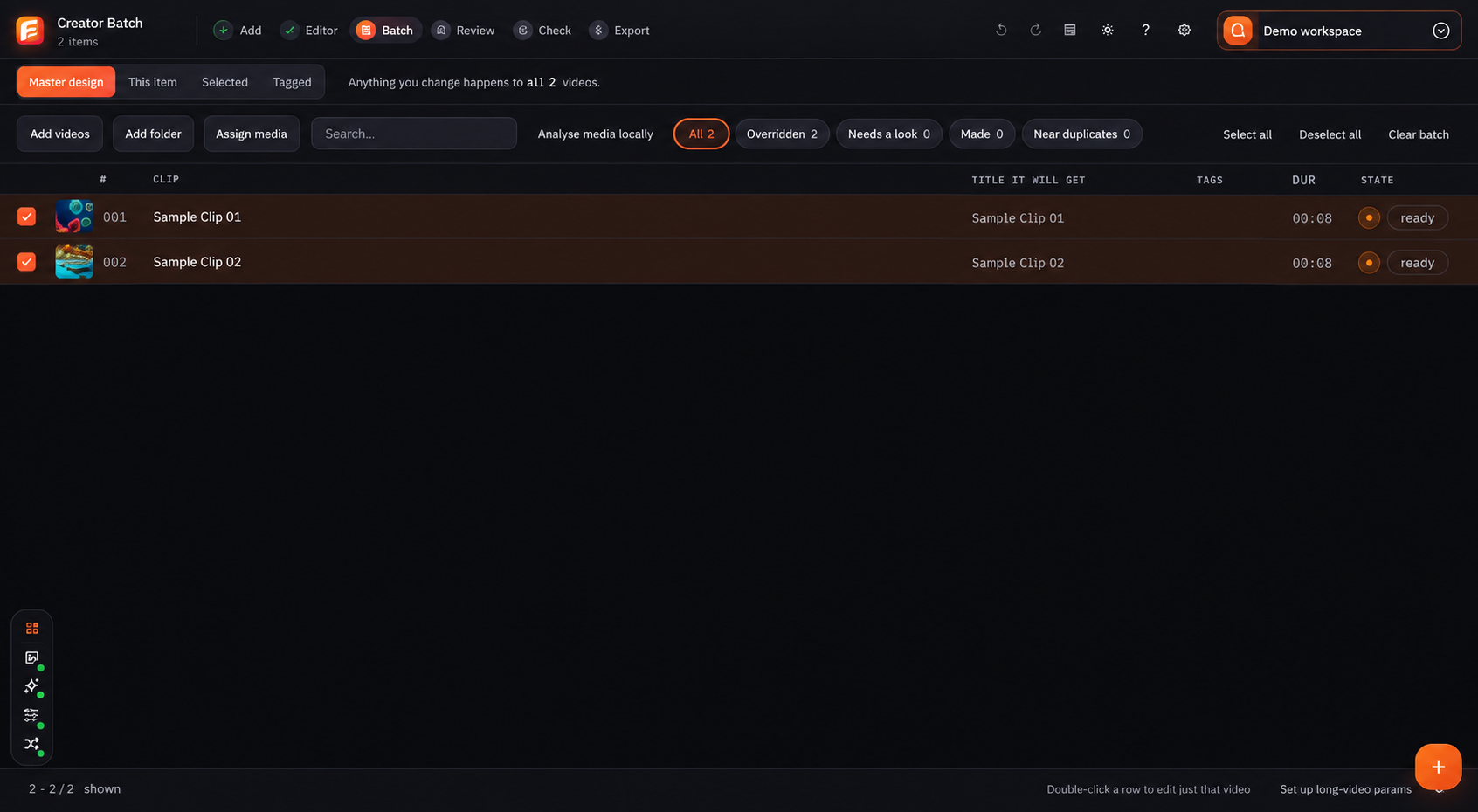
Keep every video clear, even in a large batch.
Batch shows the title, tags, length and state for every item. Use All, Changed, Needs a look, Made and Near duplicates to find the videos that need your attention.
- See all videos and their current state in one list
- Use one design, then make small changes for chosen items
- Filter the list to focus on changed or attention items
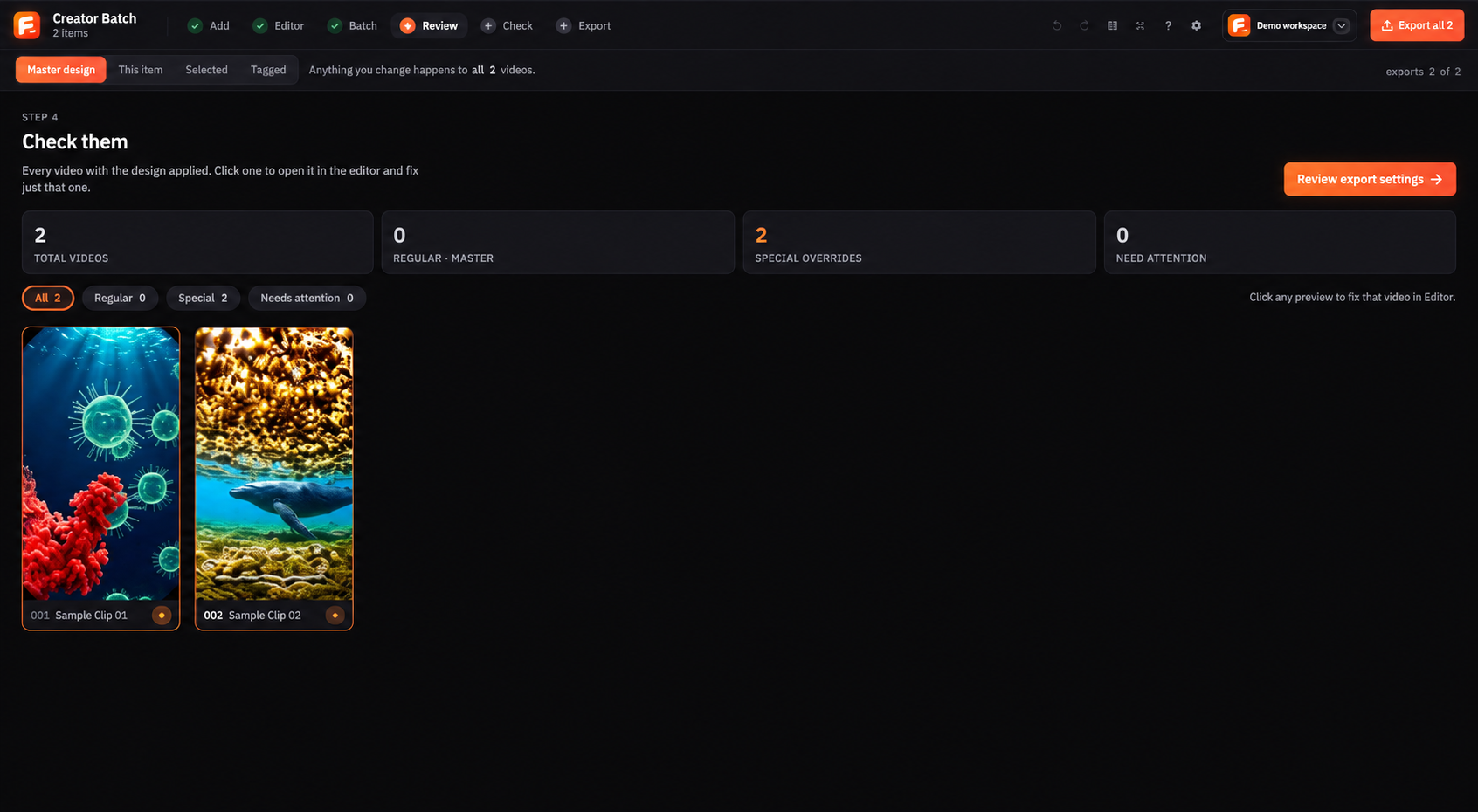
See what needs attention before export.
Review turns a long batch into a visual checklist. Counts for total, regular, special and needs attention sit beside preview cards. Open a card and return to the exact item that needs a fix.
- Preview cards for every video
- Clear regular, special and needs-attention states
- Jump back to the correct item without losing the batch
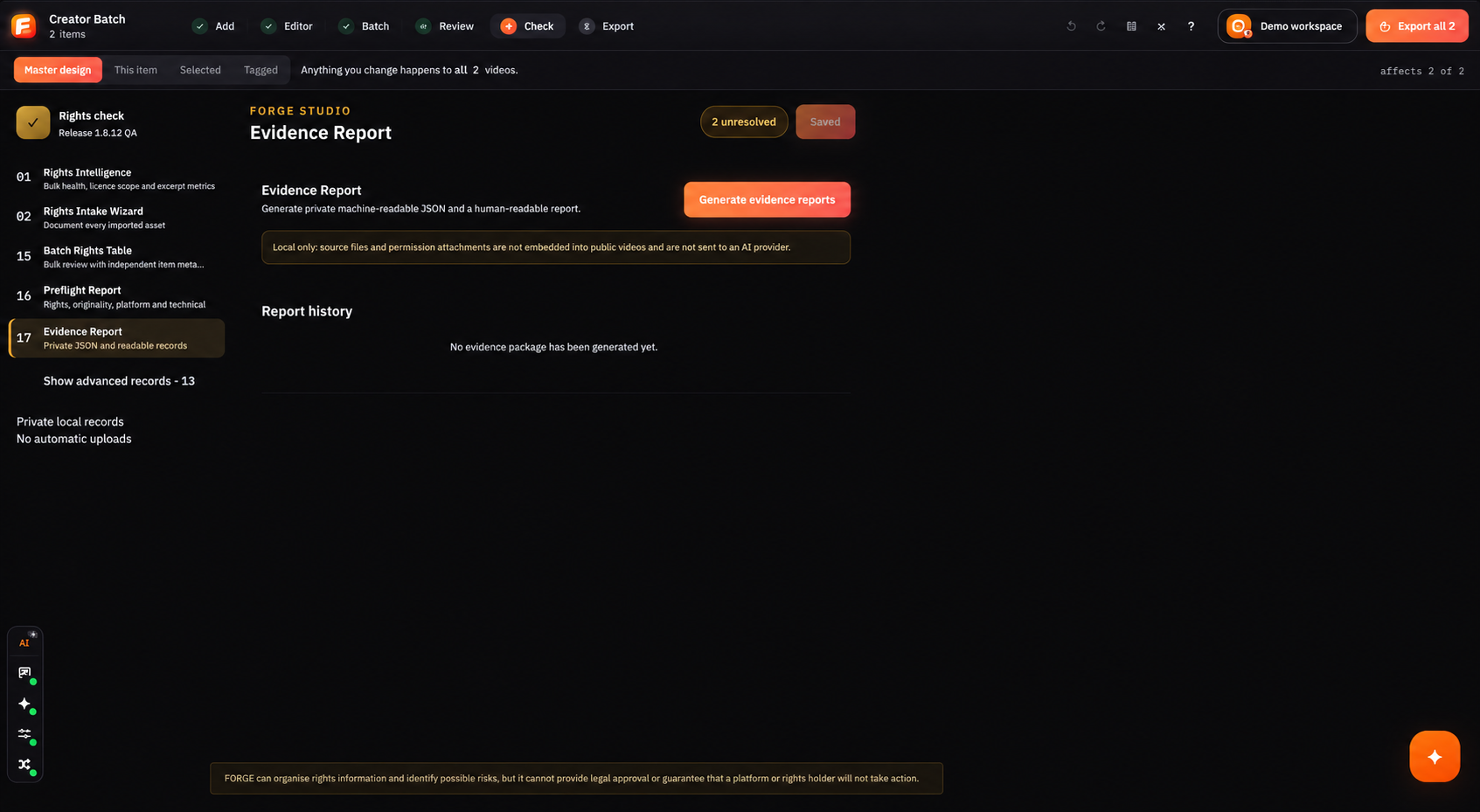
Keep evidence and open questions in one place.
Rights Intelligence, Intake Wizard and Batch Rights Table help you record what you know. Preflight is a check before export, while Evidence Report creates a record your team can review.
Create the right versions, then check the files.
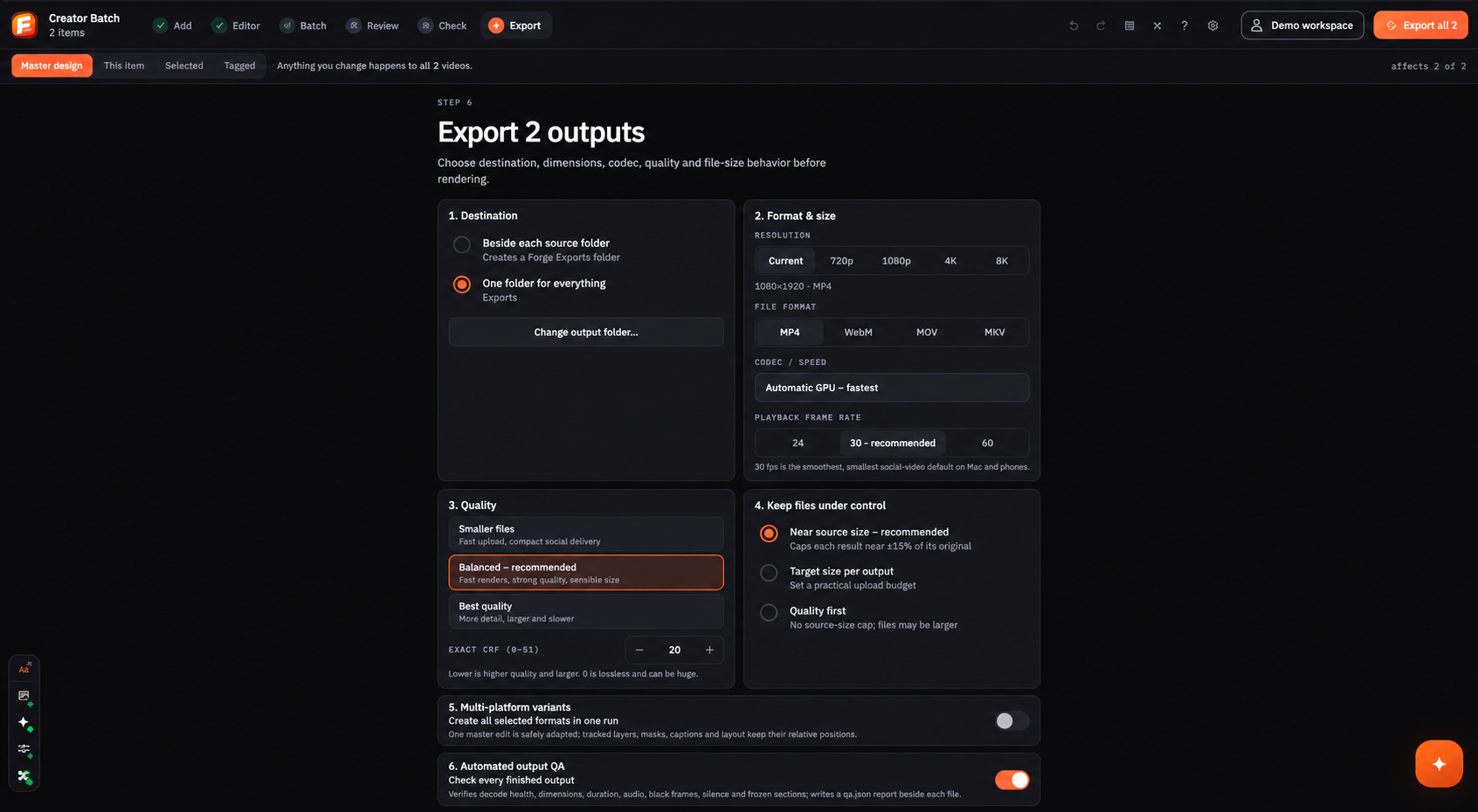
Choose the save location, resolution, format, frame rate and quality. Forge can create more than one platform version and then check the final file for format, size, length, audio and frozen frames.
- 720p to 8K with MP4, WebM, MOV and MKV choices
- 24, 30 or 60 FPS with Smaller, Balanced and Best quality
- Quick, Standard or Deep output checks
Every workflow screen and editor tool.
Use this directory to check the complete working set before download or find the right control after installation.
01–08Batch & file list8 features
- Add individual videos
- Add a complete folder
- Select or deselect all
- Remove one file from the batch
- Use right-click actions
- Clear a batch safely
- Preview with picture and sound
- Read resolution, FPS, duration and codec
09–17Editing & layout9 features
- Frame-accurate start and end trim
- Keyframe fast cut without re-encoding
- Percentage or rectangle crop
- Resize by exact width and height
- Rotate 0°, 90°, 180° or 270°
- Flip horizontally or vertically
- Set speed from 25% to 400% with matched audio
- Control border colour, size, style and radius
- Use 16:9, 9:16, 1:1, 4:5 or a custom aspect
18–24Colour & quality7 features
- Adjust brightness
- Adjust contrast
- Adjust saturation
- Sharpen the picture
- Set exact CRF 0–51 or use practical quality tiers
- Save reusable look presets with strength
- Use blur, colour, black, white, image or video backgrounds
25–32Audio & subtitles8 features
- Set source volume from 0% to 200%
- Mute the original audio
- Use one music file or a mapped music folder
- Fade in original audio and music
- Fade out original audio and music
- Replace a soundtrack across the batch
- Burn SRT, ASS, SSA or VTT captions
- Choose burn-in, switchable soft track or external subtitle file
33–37Advanced tools5 features
- Rewrap a container without re-encoding
- Conform to PAL, NTSC, cinema or web frame rates
- Merge all videos
- Extract audio, silent video or image frames
- Splice one insert clip across the chosen batch scope
38–43Export & records6 features
- Deliver H.264, H.265 or VP9 WebM
- Use CPU, Apple, NVIDIA, AMD or Intel encoders with fallback
- Add prefix and suffix file naming
- Save portable JSON presets
- Show a finish notification or confirmed sleep/shutdown
- Create CSV, JSON and readable TXT processing logs
44–47Keyboard shortcuts4 shortcuts
- Ctrl/⌘ + O · add videos
- Ctrl/⌘ + A · select all
- Ctrl/⌘ + S · save a preset
- F5 · open safe export preflight
Ready for your first batch?
Check your computer, choose a plan and follow the first lesson.