A clear record makes the final review easier.
Forge keeps rights notes and file checks close to the workflow. These tools support your team’s review; they do not provide legal approval or guarantee a platform result.
Use the five Rights Check tools
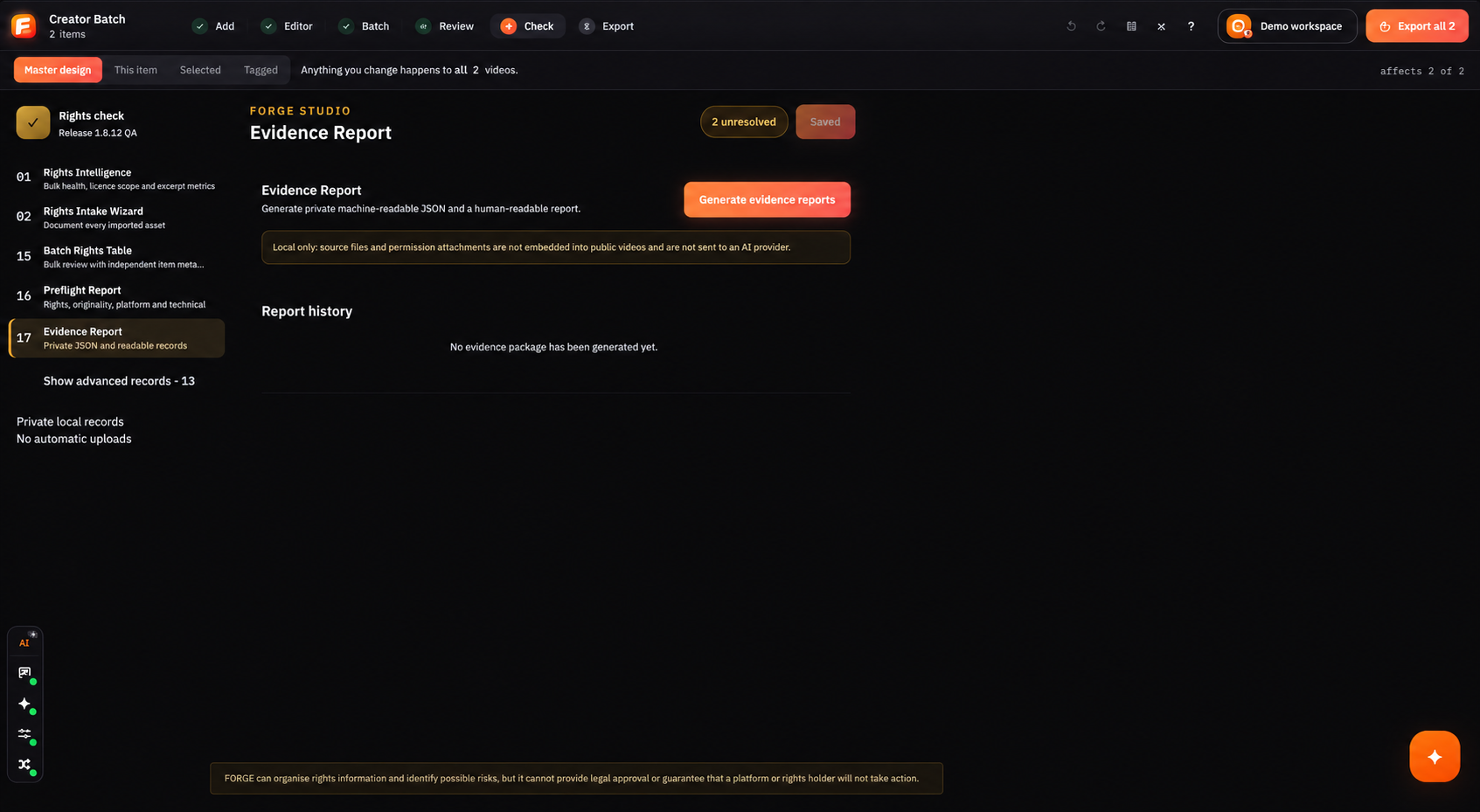
Rights Intelligence shows possible issues. Intake Wizard helps you record details. Batch Rights Table shows many items together. Preflight is the check before export. Evidence Report saves a readable review record.
Resolve open questions before export
Attach notes and evidence to the correct item or batch. Check unresolved items and the saved state. Export the JSON data or readable report when your team needs a review copy.
Choose the save location and file settings
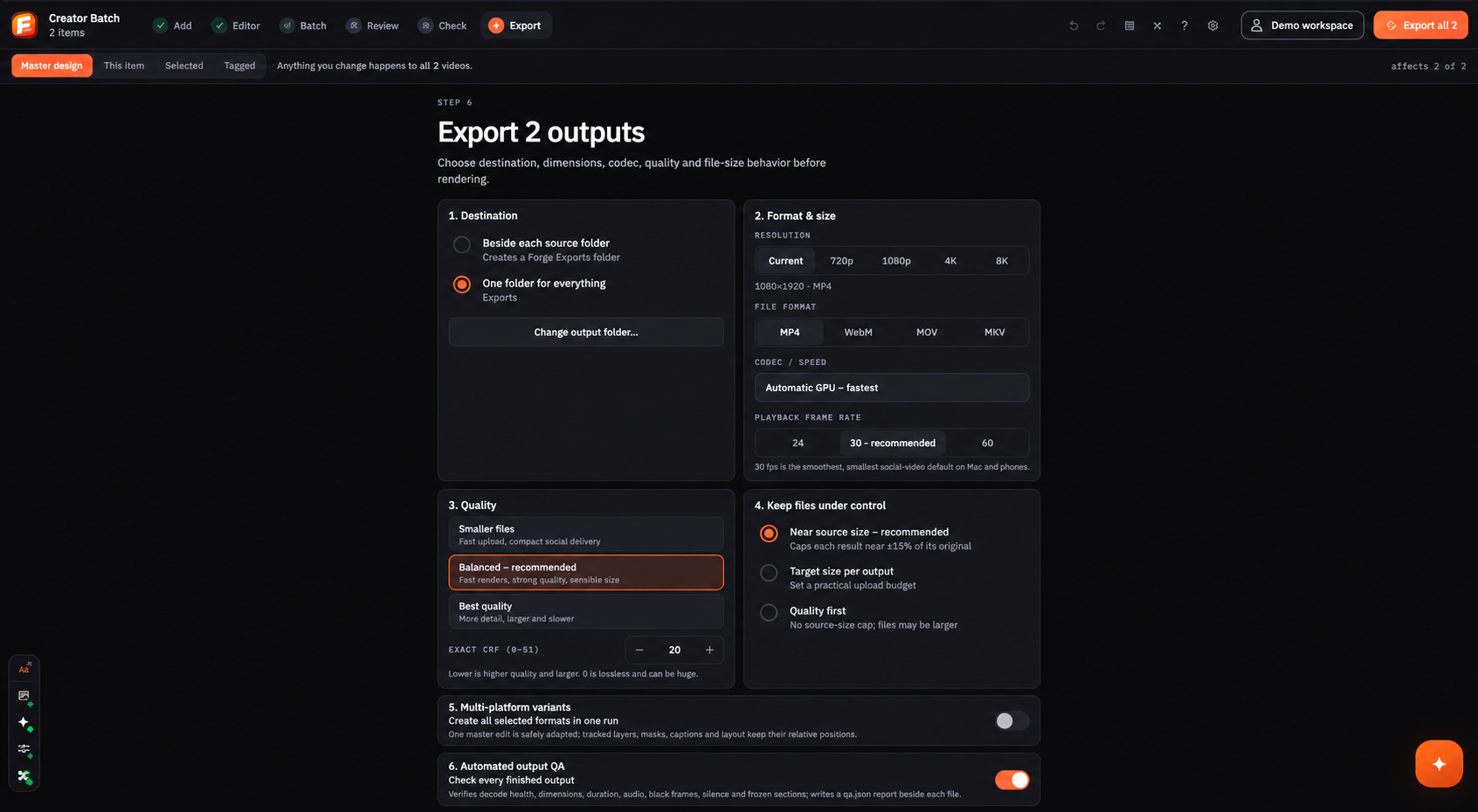
Save beside each source or choose one folder. Select Current, 720p, 1080p, 4K or 8K; MP4, WebM, MOV or MKV; and 24, 30 or 60 FPS. Then choose Smaller, Balanced or Best quality and add any needed platform versions.
Read the final file check
Quick, Standard or Deep checks can review codec, size, length, audio, black frames, silence and frozen parts. A pass means the file was checked; still watch the finished video and complete your own rights review.